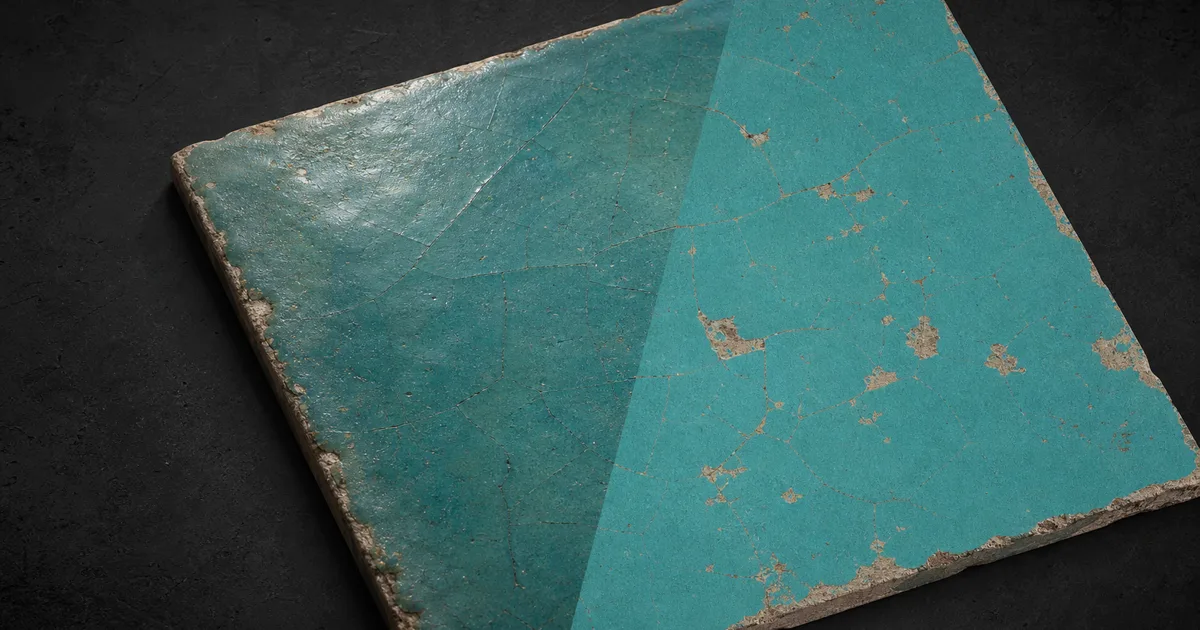
Put a photograph beside an albedo map and the difference may look modest. Put both into a renderer, rotate the light, and the photograph immediately confesses. An AI albedo map generator tries to recover the surface’s base colour while removing shadows, highlights, ambient occlusion, perspective, and camera bias. The goal is not a prettier image. It is colour data that lets the renderer do the lighting exactly once.
That distinction matters for photo-scanned materials, reference images, marketplace photos, and old texture libraries whose authors treated baked sunlight as a feature. This guide explains how an AI albedo map generator separates colour from illumination, how to prepare a useful source, how to test the output, and how to export it for Unity, Unreal, and Blender.
What an AI albedo map generator must remove
Albedo—called base color in many shaders—describes the fraction and colour of light reflected by a surface before scene lighting is applied. It should contain pigment, mineral colour, stains, paint, oxidation, and other genuine colour changes. It should not contain a window reflection, a dark corner caused by geometry, a specular hotspot, or a cast shadow from the photographer’s elbow. For the underlying map definition, see What Is an Albedo Map?
A source image mixes all of those signals into RGB pixels. An AI albedo map generator must decide why each pixel changed. A dark region could be charcoal pigment, damp stone, a recess, low exposure, or the shadow of a nearby railing. A bright patch might be white paint, polished glaze, direct sun, or a clipped reflection. Simple colour correction can flatten an image, but it cannot reliably identify the physical cause.
Context gives AI an advantage over a global filter. If a shadow crosses several bricks and mortar joints with the same soft edge, it probably belongs to lighting. If orange follows chipped paint and exposed steel, it probably belongs to rust colour. If a highlight moves across an otherwise uniform ceramic glaze, it belongs to reflectance and should be removed from albedo. The camera is an enthusiastic witness and a terrible lab technician; the generator has to edit its testimony.
This is also why an AI-generated albedo map should be produced with the other PBR maps when possible. Normal and height explain geometry. Roughness explains reflection spread. Ambient occlusion explains tight cavity shading. Each map gives the model somewhere appropriate to put information instead of leaving every visible cue trapped in base colour.
Prepare the source before image-to-albedo conversion
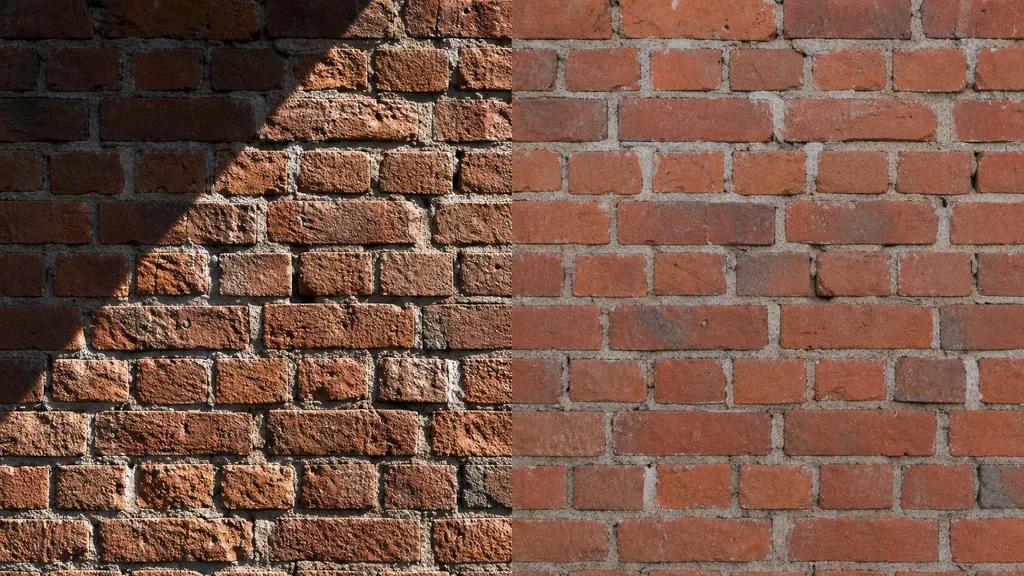
The strongest image to albedo map workflow begins with an unremarkable photograph. Capture the surface straight on, fill the frame, and use soft, even illumination. Cross-polarized capture is ideal because polarizing filters on the lights and lens can suppress specular glare. If that setup is unavailable, open shade or broad diffused lights are more useful than hard sunlight.
Before sending the image to an AI albedo map generator:
- Correct perspective so repeated features keep a consistent scale.
- Set a neutral white balance using a grey card or a known neutral area.
- Recover highlights and lift deep shadows without clipping either end.
- Remove objects, borders, large debris, and cast shadows unrelated to the material.
- Reduce lens vignetting and broad exposure gradients.
- Record the physical size represented by the crop.
- Keep the highest-bit-depth source available; repeated JPEG saves are a quiet form of vandalism.
For a photo to albedo map conversion, scale is not optional metadata. A 20 cm patch of terrazzo and a two-metre cliff can contain similar shapes but require different interpretations of stains, pores, and relief. State the crop size and intended tiling scale. If the texture will repeat, avoid one unique leaf, crack, or bleach mark that becomes a landmark every four metres.
Do not over-clean the source. Dirt can be genuine colour. Faded paint can be genuine colour. The aim is to remove illumination, not history. Preserve variation that would still be visible if the material were moved into a completely different lighting environment.
How to generate an albedo map with AI
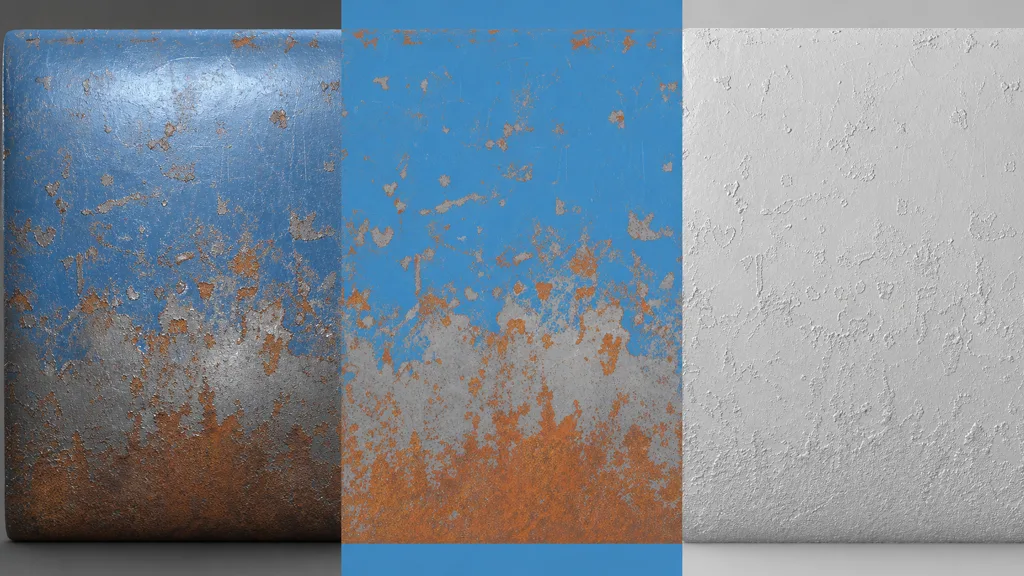
Use this workflow to generate albedo map with AI from a photograph or reference image:
- Identify the material layers. Name the substrate, coatings, deposits, and wear: for example, blue enamel over steel with exposed metal and orange oxidation.
- Describe what belongs in colour. Ask to preserve paint hue, rust colour, mineral inclusions, stains, and faded regions while removing illumination.
- Describe what must leave. Explicitly exclude cast shadows, directional shading, reflections, specular highlights, ambient occlusion, perspective, and depth cues.
- Set scale and tile behaviour. Give the physical dimensions and request edge continuity plus an even feature distribution when the asset must tile.
- Generate a coordinated map set. Create albedo alongside normal, roughness, height, AO, and metalness so visible evidence can be assigned to the correct output.
- Retain editable controls. Keep masks or node operations for delighting, colour balance, and local correction rather than treating the first result as archaeological law.
A useful instruction might read: “Recover lighting-neutral base colour from this 50 cm weathered painted-steel sample. Preserve blue paint, orange rust, grey exposed steel, and permanent stains. Remove the diagonal shadow, white glare, cavity darkening, and all directional shading. Keep features aligned with the generated normal, roughness, and height maps.”
An automatic albedo map generator can save the first long pass of masking and delighting, especially on irregular organic surfaces. It cannot know the exact artistic target. A scanned wall may need faithful conservation; a game material may need compressed colour variation so it tiles quietly; an archviz surface may need measured colour matching. Generation supplies a defensible base. Art direction decides what gets to stay.
Separate genuine colour from borrowed lighting
The most important review question is simple: would this colour change remain if the light moved?
- Keep pigment and substance changes. Paint, ink, stone veins, rust, patina, soot, moss, and absorbed stains belong in albedo when they genuinely change surface colour.
- Remove cast and form shadows. A dark band crossing unrelated features, or a gradient aligned with surface orientation, belongs to lighting.
- Remove specular highlights. White glare on glaze, wet stone, polished metal, or varnish belongs to roughness and the renderer’s lights.
- Remove ambient occlusion. Darkening inside cracks and contact points belongs in an AO map, not permanently multiplied into base colour.
- Treat dirt by cause. Dust may change colour and roughness; a cavity merely hidden from the capture light does not change colour at all.
Metal needs extra care. In a metalness workflow, the base colour of bare metal represents its tinted specular reflectance, while painted or oxidized regions behave as dielectrics. Do not “correct” exposed copper or gold toward neutral grey simply because non-metals usually have moderate albedo values. The map must agree with metalness about which material occupies each pixel.
Skin, foliage, fabric, and translucent materials also resist one-size-fits-all limits. Reference charts are useful guardrails, not a licence to force every material into the same histogram. An AI albedo map generator should remove lighting while preserving plausible material identity.
Validate an AI-generated albedo map under new lights
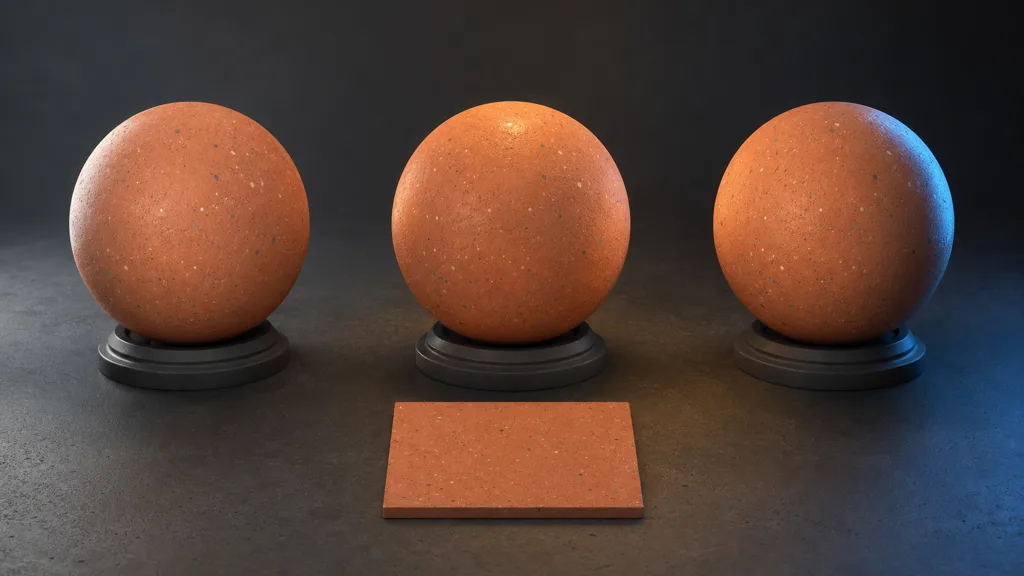
Do not approve an AI-generated albedo map by viewing it flat. Place it on simple geometry with the rest of the PBR set and test it under several environments. A sphere exposes broad gradients and highlights; a plane exposes baked shadows and tiling; a cube exposes face-to-face inconsistency.
- Rotate a hard light. Any shadow or highlight that remains painted in place is baked into albedo.
- Change the environment. Test neutral daylight, warm interior light, and a cool high-contrast setup. The material colour should respond without revealing the original capture direction.
- Disable other maps briefly. View albedo with neutral roughness and no normal or AO. This isolates suspicious darkening that other maps might disguise.
- Tile at production scale. Look for exposure gradients, colour drift, repeated landmarks, and edges that match mathematically but announce the tile from across the room.
Use a colour picker as a diagnostic, not a verdict. Compare representative regions with real references and check that values are neither crushed nor clipped. The best AI albedo map generator 2026 candidates are the ones whose output survives relighting, not the ones that make the flattest thumbnail. A completely flat-looking map can still contain the wrong colours with remarkable confidence.
Fix common AI albedo failures
A shadow remains in the map. Estimate the low-frequency illumination gradient, divide or mask it out, and repair local colour across the boundary. Regenerate from a better-lit source if the shadow hides detail rather than merely darkening it.
Highlights become white paint. Restore colour from neighbouring regions or use polarization-aware input. Check the roughness map as well; the missing highlight belongs to the renderer, but the glossy region that caused it may still need distinct roughness.
The result is too uniform. Delight operations sometimes erase slow material variation along with lighting. Reintroduce only changes supported by the surface: fading, mineral distribution, stains, or coating wear. Random colour clouds are not evidence.
Ambient occlusion is baked in. Lift dark cavities in albedo and keep their occlusion in AO. Otherwise indirect light can never reach them, and multiplying an AO map later makes the error twice as dedicated.
Different maps drift out of alignment. Use shared masks or regenerate the set together. Paint loss should reveal substrate in albedo, change reflectance in roughness, alter metalness where relevant, and correspond to relief only when the coating has measurable thickness. The AI PBR material generator guide has a full map-coherence checklist.
The tile has no edge seam but still repeats. Remove unique interior landmarks, rebalance large colour masses, and test a grid larger than two by two. The seamless tileable textures guide covers edge continuity and repetition as separate problems.
Export albedo for Unity, Unreal, and Blender
Albedo is colour, so it normally uses sRGB sampling. Normal, roughness, metalness, height, and AO are data maps and normally remain linear. Mixing those rules can make a correct AI-generated albedo map appear washed out or too dark before anyone touches a light.
For an AI albedo map generator for Unity, import the texture as Default with sRGB enabled and connect it to Base Map or Albedo, depending on the render pipeline and shader. Check alpha usage before compression; an unused alpha channel costs memory, while a deliberately packed opacity channel needs the correct shader setting.
For an AI albedo map generator for Unreal, leave sRGB enabled, use the Default compression setting, and connect RGB to Base Color. Avoid multiplying baked AO into the texture. Unreal can apply AO separately, which allows it to respond to the scene instead of preserving the source photograph’s darkest opinion.
For an AI albedo map generator for Blender, set the Image Texture node to sRGB and connect Color to Principled BSDF Base Color. Use separate Non-Color image nodes for scalar maps. If the material changes drastically between Blender and an engine, compare colour management and tone mapping before repainting the texture.
Keep a lossless or high-quality master outside engine-specific packing. Export sizes should follow camera distance and texel density rather than the emotional comfort of a 4K filename. The texture resolution guide gives practical sizing targets.
Try CraftPBR
CraftPBR makes the AI albedo map generator part of a complete, editable material workflow:
- Text-to-PBR builds a coordinated material from a physical description.
- Photo-to-PBR converts a captured surface into albedo, normal, roughness, height, AO, and metalness where relevant.
- Node workspace lets you delight, rebalance colour, repair masks, and keep corrections repeatable.
- Engine export prepares maps for Unity, Unreal, Blender, Godot, and Three.js conventions.
- Free tier lets you test the workflow before choosing a production route.
- CC0 output means generated materials can be used, modified, and shipped without attribution.
An AI albedo map generator is successful when the original photograph becomes impossible to reconstruct from the lighting. The surface remains; the lamp loses its cameo.