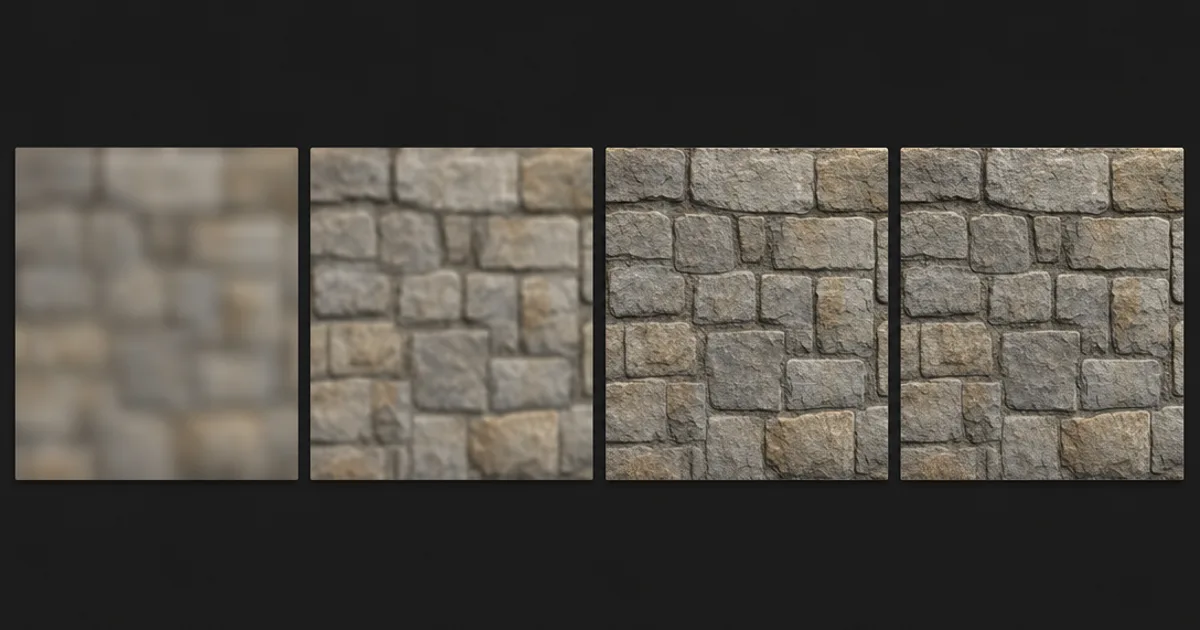
Bigger is not better — it is just heavier. The reflex to set every texture to 4K “to be safe” is the quiet reason so many projects run out of memory before they run out of content. Picking a texture resolution well is one of the highest-leverage habits in real-time art, and it comes down to a single question the largest-size reflex never asks: how close does the camera actually get? Here is how to size textures on purpose.
What resolution actually is
Texture resolution is just the pixel dimensions of the map — 512×512, 1024 (1K), 2048 (2K), 4096 (4K), 8192 (8K). Each step doubles the pixels on each side, which means it quadruples the total. That squaring is the whole story of this article: a 4K map is not twice a 2K map, it is four of them stacked, and your memory budget feels every one.
The rule nobody starts with: match the camera
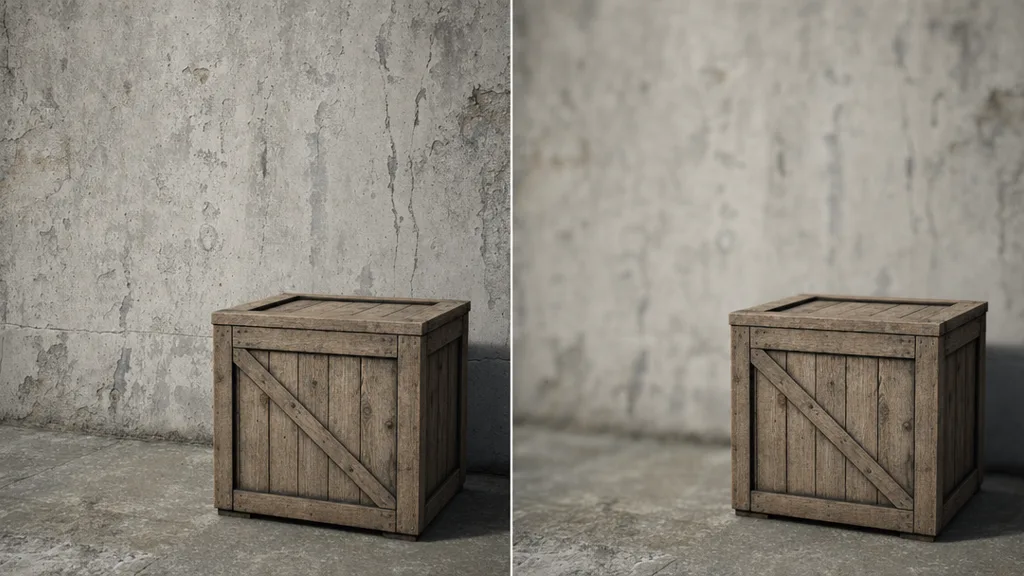
The right target is not a resolution at all — it is texel density, the number of texture pixels landing on a fixed patch of surface. Keep that consistent and a crate and a wall look equally sharp; let it drift and one surface turns to mush next to another, no matter what their file sizes say. Resolution is simply the lever you pull to hit a texel density for a given UV layout, which is why it is inseparable from UV mapping. A small object with tight UVs can look razor-sharp at 1K; a big object with loose UVs looks soft even at 4K.
Resolution is a memory budget, not a quality slider
Because cost scales with the square, resolution is spent, not maximised. One uncompressed 4K RGBA map is roughly 64 MB before mipmaps; a full PBR set — colour, normal, roughness, AO, metalness — multiplies that across five maps, and a scene has hundreds of materials. Block compression (BCn, ASTC) and mipmaps claw a lot of that back, but the ratios hold: every doubling quadruples the bill. Treat your VRAM like a budget and resolution like the price tag on each surface.
A quick chart to size by
- 512 / 1K — small props, distant objects, anything that fills little of the screen. Most of a scene lives here.
- 2K — the modern default for hero surfaces on PC and console: character faces, walls the player walks past, key props.
- 4K — large surfaces the camera genuinely gets close to: a floor you crouch on, a hero weapon in first person.
- 8K+ — archviz and film close-ups only. In a game it is almost always memory you will wish you had back.
- Mobile — drop each of the above a step, and lean on ASTC compression.
When 4K is just waste
The most common overshoot: a background building, a ceiling, a distant cliff — surfaces the camera never approaches — authored at 4K because it was the default. The player sees maybe a 256-pixel slice of that map on screen at any moment; the other fifteen-sixteenths of the data is paying rent for nothing. Ship those at 1K, spend the saved memory on the surfaces the camera actually studies, and the scene looks better at lower total cost. Restraint is the upgrade.
Generate at the size you need
Because texture memory is a budget, it helps to author at the target resolution rather than making everything huge and downsizing later. CraftPBR exports at multiple resolutions, so you can pull a floor at 4K and a background wall at 1K from the same text-to-PBR workflow — the maps are generated to fit the job instead of trimmed down to it.
Try CraftPBR
- Text-to-PBR — describe a surface, export at the resolution you need
- Photo-to-PBR — a photo becomes a full material
- Free tools — normal map, height map, seam editor
- Engine export — Unity, Unreal, Blender, Godot, Three.js
- CC0 license — everything you make is yours