What is a Roughness Map? A PBR Texture Guide

7 min read · Last updated May 2026

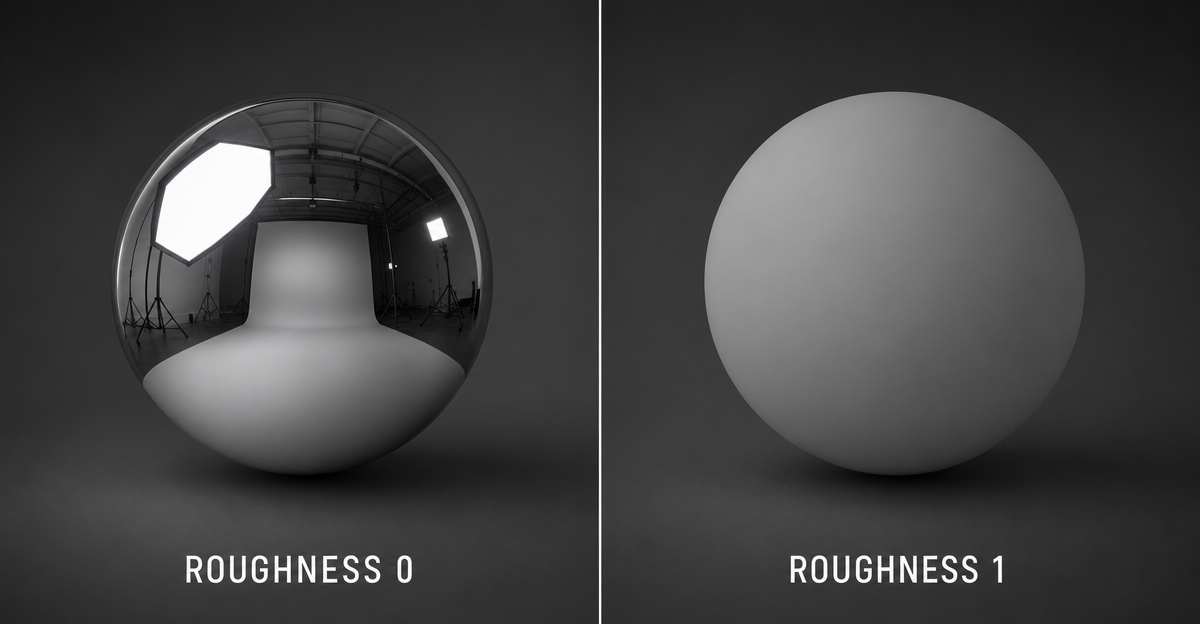
Two identical spheres rendered side by side — left is a polished chrome ball with a sharp reflection, right is a matte rubber ball with diffuse shading — labelled 'roughness 0' and 'roughness 1'
Same sphere, same light, same albedo. Only the roughness map changed. Left: 0. Right: 1.

A roughness map is a single-channel greyscale image that tells the renderer how sharply light should reflect off every pixel of a surface. Black means a mirror — perfectly smooth, sharp reflections. White means a chalkboard — fully diffuse, no reflection. Everything else is somewhere on that spectrum, and almost every real material lives between the two ends.

Roughness is what separates a polished marble countertop from a weathered concrete slab. Same base colour, same normal map, same lighting — change the roughness and the surface stops being a piece of stone and starts being a different piece of stone.

How roughness actually works

Under the hood, PBR shaders use microfacet theory: every surface is modelled as a sea of microscopic mirrors. A low roughness value means those mirrors line up — so a single incoming light ray bounces in one direction and the reflection is sharp. A high roughness value means the mirrors point everywhere — so that same ray bounces in a thousand directions and the reflection blurs into ambient light.

You don’t set this per pixel manually. You author one greyscale texture that varies across the surface, and the renderer does the per-pixel maths for you.
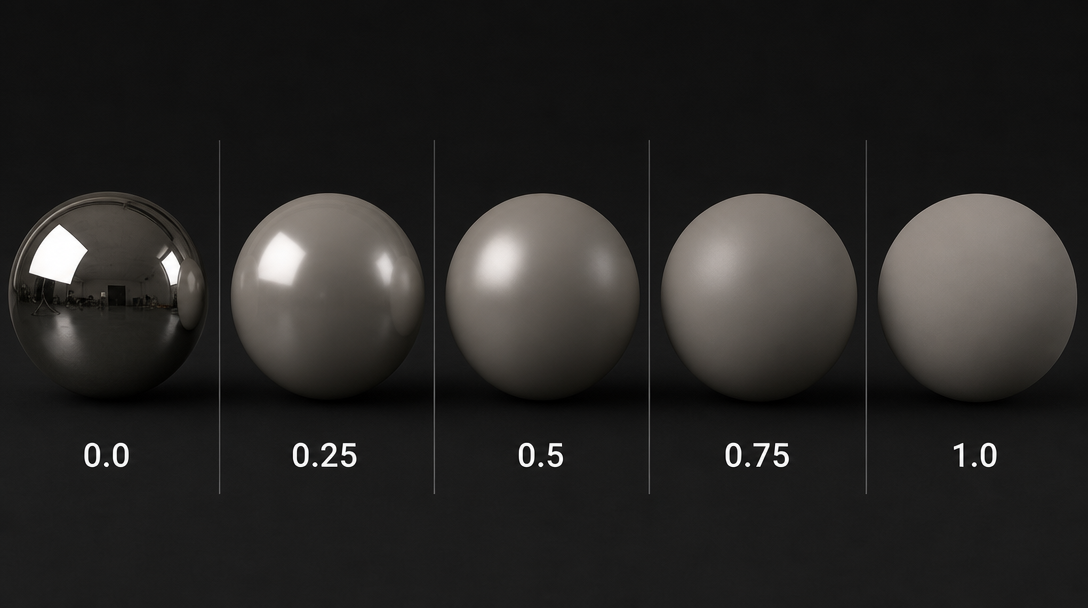
Five identical spheres rendered in a row with roughness values 0.0, 0.25, 0.5, 0.75, and 1.0 — same albedo and lighting, showing the gradient from mirror reflection to fully matte
One material, five roughness values. Same shader, same light. The reflection just keeps spreading out.

The biggest mistake: sRGB vs linear

Roughness is data, not colour. If the renderer reads it through an sRGB curve (designed to brighten midtones for human perception), every value above zero gets pushed slightly brighter — which in roughness terms means slightly more matte. The whole material drifts toward chalky. Sphere should be glossy, looks like a billiard ball that’s been chewed on.

Import roughness as linear (Non-Color in Blender, sRGB unchecked in Unity, by default in Unreal). This is the single setting that fixes more “why does my material look flat” bug reports than any other.

Roughness in the metalness workflow

Modern PBR uses metalness + roughness instead of the older specular + glossiness. Roughness comes alongside three companion maps:

  • Albedo — base colour, no lighting baked in.
  • Normal — surface direction, fakes bumps.
  • Metalness — is this pixel metal or dielectric?
  • Roughness — how blurry are the reflections?

For convenience these get packed into a single RGBA file in some engines:
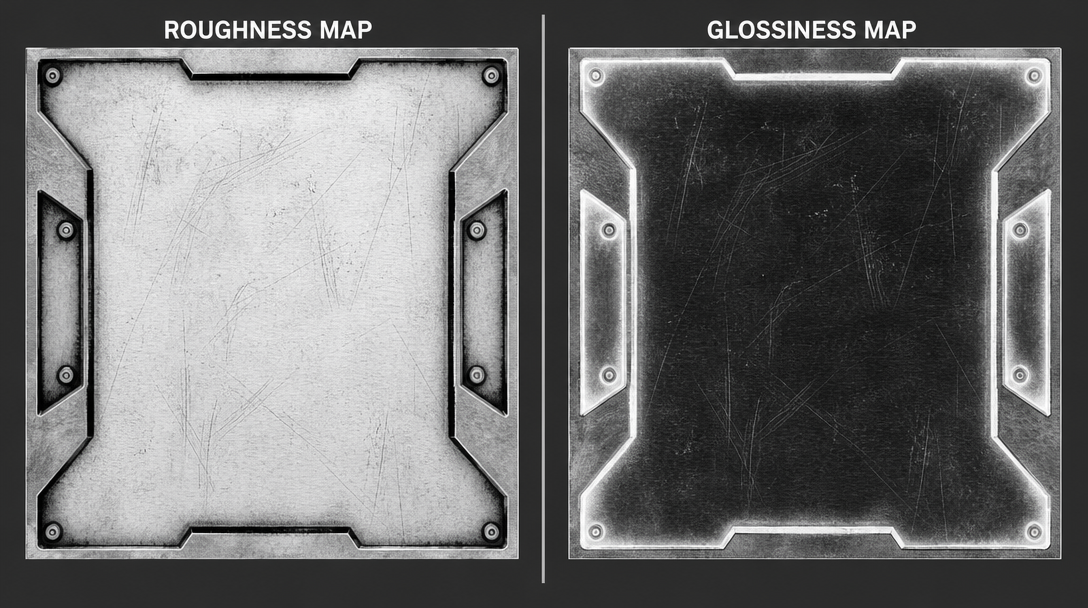
Two grayscale texture maps shown side by side — the left labelled 'roughness' with black smooth areas and white rough areas, the right labelled 'glossiness' with the values inverted
Same surface, two encodings. The numbers under the pixels are identical — only the labels disagree about which end is shiny.

Packed ORM textures

Unreal and glTF (and most modern Unity setups) expect a packed ORM texture where Red = AO, Green = Roughness, Blue = Metalness. One file, three channels, smaller VRAM footprint than three separate greyscale files.

If your packer drops roughness into red or blue instead, the engine reads AO or metalness as roughness and the material looks wrong everywhere — usually too matte and too metallic, or weirdly chalky. Always check channel order before debugging anything else.
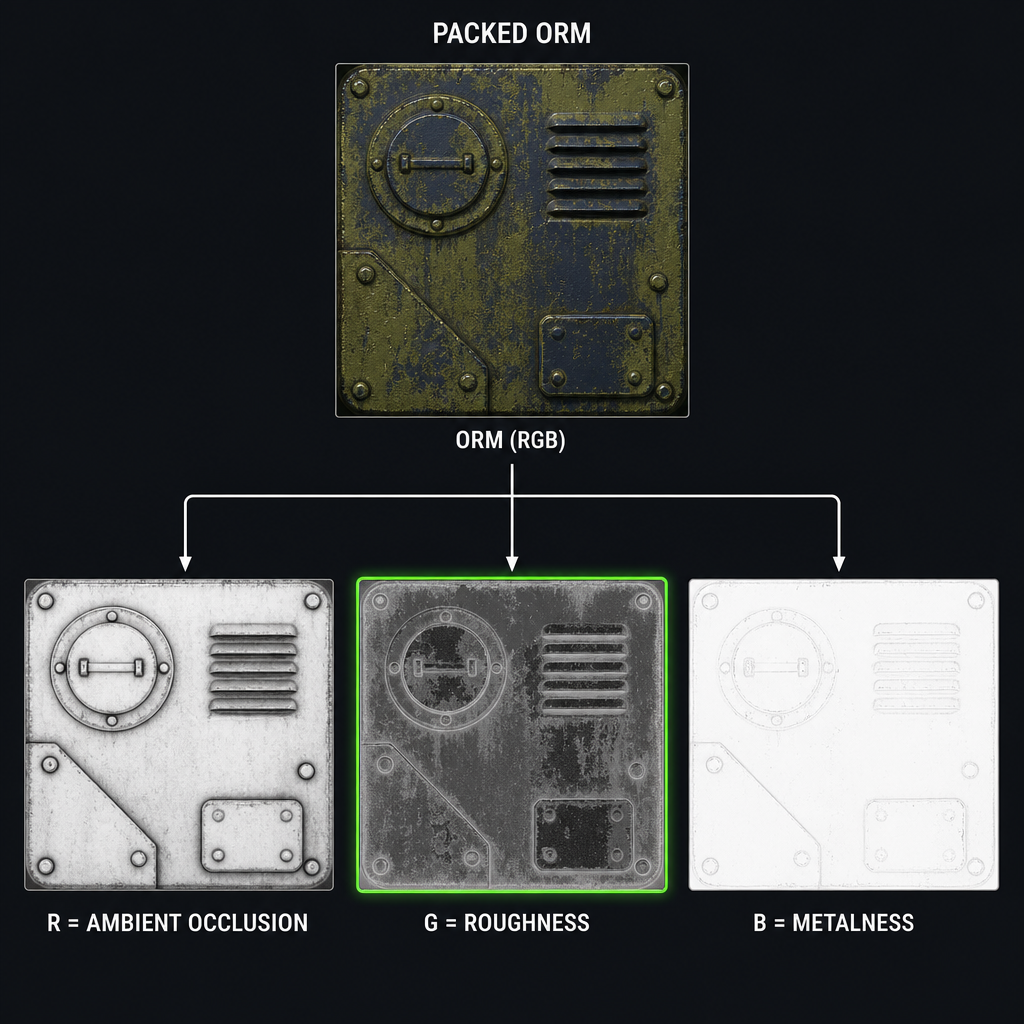
Diagram showing a channel-packed ORM texture split into its three components — red channel labelled 'Ambient Occlusion', green channel labelled 'Roughness', blue channel labelled 'Metalness'
One file, three maps. Red = AO. Green = Roughness. Blue = Metalness. The engine reads each channel separately.

Real-world roughness values

Rough rule of thumb, sit anywhere in these ranges and you’ll read as believable:

  • Polished chrome — 0.00 to 0.10
  • Brushed metal — 0.20 to 0.40
  • Painted plastic — 0.30 to 0.50
  • Weathered wood — 0.60 to 0.80
  • Fresh concrete — 0.70 to 0.90
  • Raw clay or chalk — 0.90 to 1.00

Real surfaces almost never sit at pure 0 or pure 1 — nature has a slightly softer touch than that. If a roughness map is a solid black or solid white, you’ve got a constant value and could replace the texture with a single float.

Three ways to make a roughness map

  1. Paint it. In Substance Painter, mask the surface into shiny and rough zones and paint values per material. Full creative control; takes the longest.
  2. Derive it from a photo or albedo. Use the luminance of a photo, an inverted height map, or a desaturated and tone-corrected albedo as a rough first pass. Clean up the result so the values match real materials.
  3. Craft it from a text prompt with AI. Describe the surface in plain language and let CraftPBR produce a full PBR set — albedo, normal, roughness, AO, metalness — coherent with each other in under a minute.
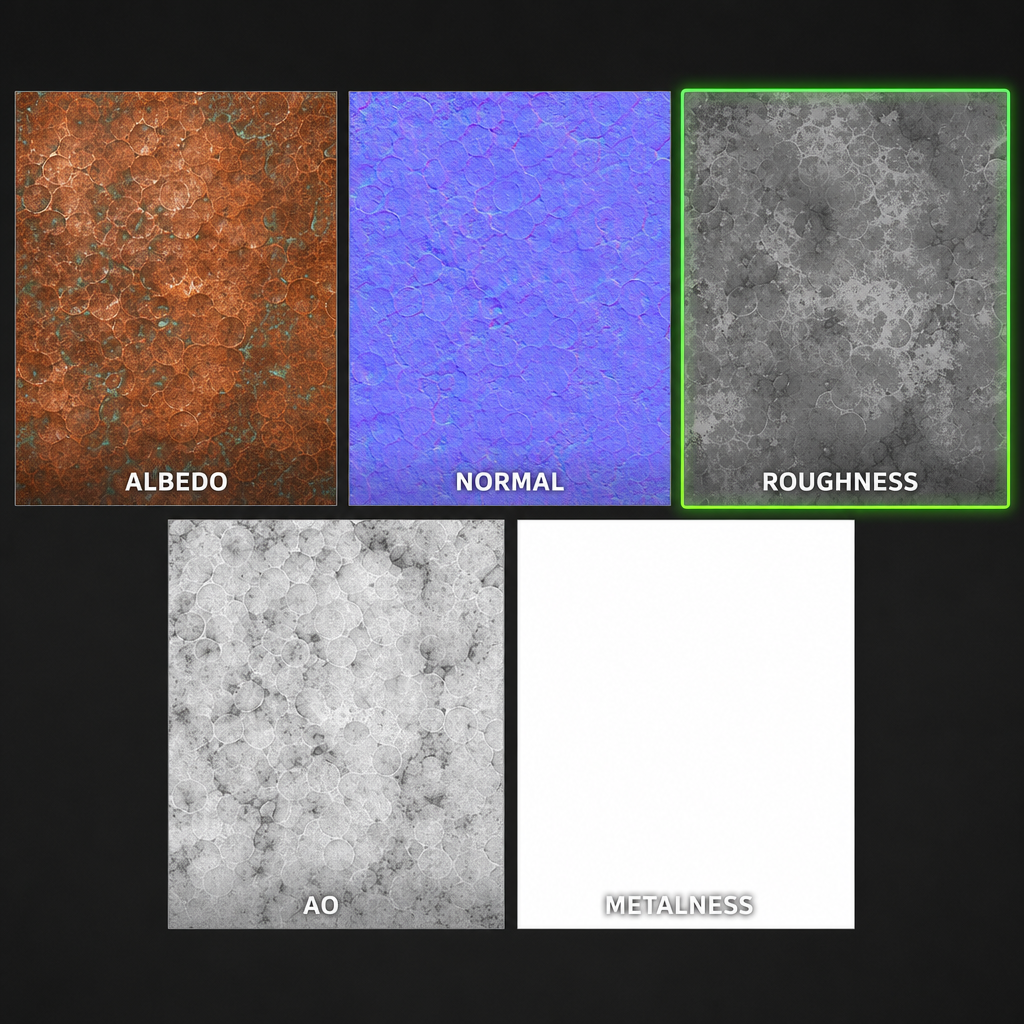
A full PBR texture set generated from a single text prompt for weathered copper — albedo, normal, roughness, ambient occlusion, and metalness shown as five tiles
One text prompt, five PBR maps. The roughness in the middle agrees with the bumps in the normal map. That coherence is the point.
Get a roughness map without the headache
CraftPBR crafts the full PBR set including a properly-encoded linear roughness map. Free, no sign-up.
Open Studio →

Debug checklist when roughness looks wrong
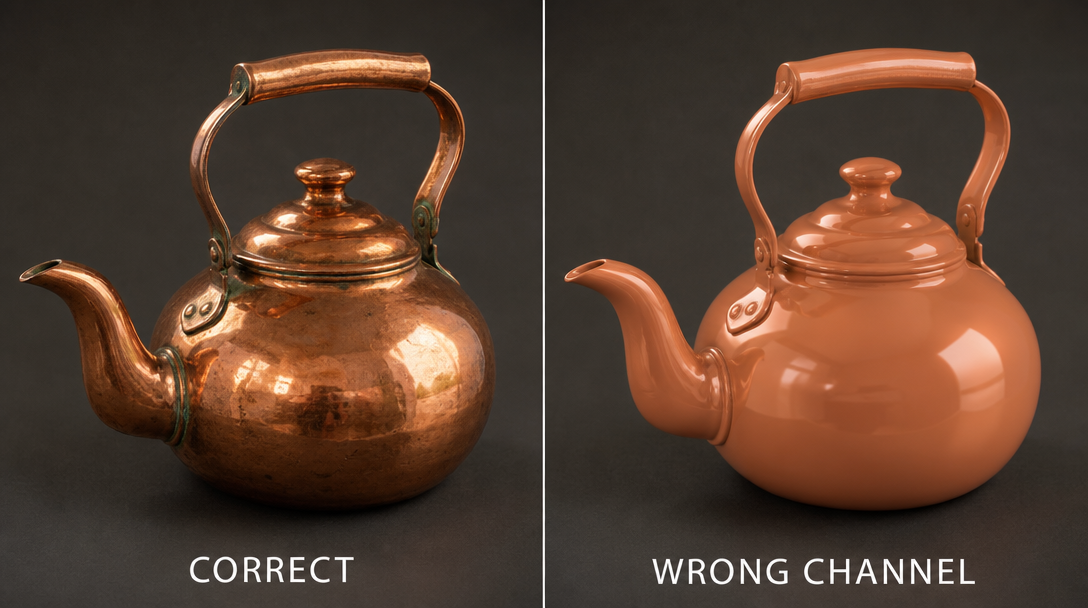
Same copper teapot rendered twice — left with a correct roughness map looking like real copper, right with the channel order wrong and the surface looking like glossy plastic
Left: roughness in the correct channel, copper looks like copper. Right: roughness in the wrong channel, copper looks like a pool floatie.
  • Is the map imported as linear / non-colour?
  • If packed: is roughness in the green channel of an ORM texture?
  • Are the values in a plausible real-world range (0.1–0.9)?
  • Does the metalness map agree — pure metal pixels need low roughness, mixed pixels need higher?
  • Is your environment HDR providing any reflection at all? A flat-grey skybox produces flat-grey reflections regardless of roughness.
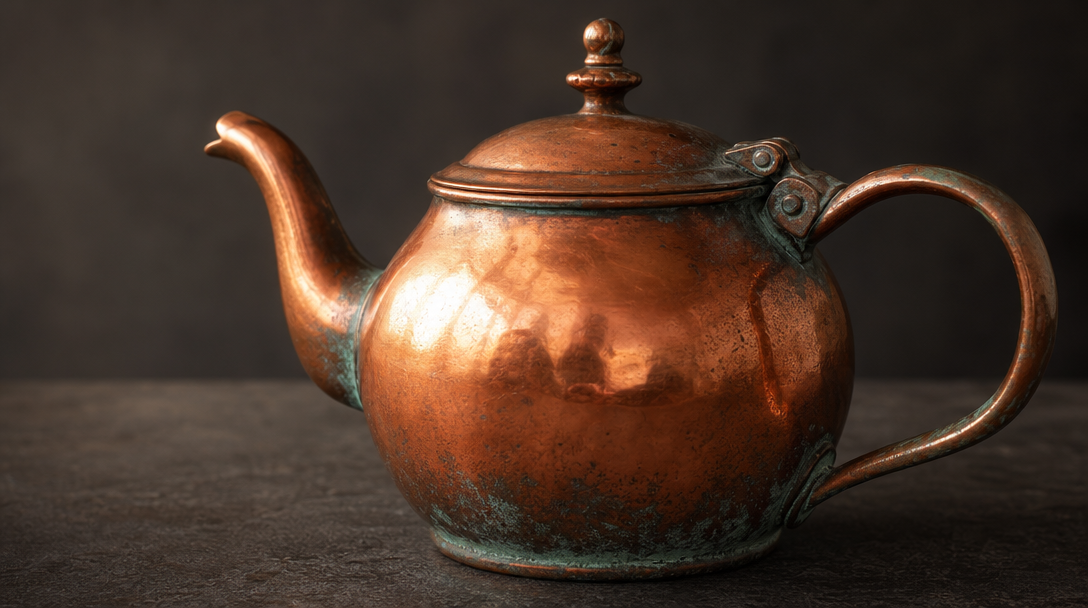
A weathered copper teapot rendered in a softly lit studio scene with a correct PBR roughness map driving the reflection variation across the surface
One roughness map doing its job. The polished bits read polished, the worn bits read worn. Nothing else changed.

Key takeaways

  • Roughness controls reflection sharpness, not colour
  • Always import as linear, never sRGB
  • In a packed ORM file, roughness lives in the green channel
  • Real materials sit somewhere between 0.1 and 0.9 — pure 0 and pure 1 look fake
  • Roughness wrong is the #1 reason metals look like plastic

Frequently asked questions

What does a roughness map do?

A roughness map controls how sharply light reflects off every pixel of a surface. Black makes the surface mirror-smooth and reflective. White scatters the light, producing a matte, diffuse look. Nothing else about the material changes — only the way light bounces.

What is the difference between a roughness map and a glossiness map?

They store the same information backwards. In a roughness map, black is shiny and white is matte. In a glossiness map, white is shiny and black is matte. The metalness workflow uses roughness; the older specular workflow uses glossiness. Feed one in where the other is expected and your material flips polarity.

Should a roughness map be sRGB or linear?

Linear. Roughness values are data, not colour. If the renderer reads them through an sRGB curve, every value above zero gets pushed slightly brighter, which in roughness terms means slightly more matte. The whole material drifts toward chalky. Always import roughness as linear (Non-Color in Blender, sRGB unchecked in Unity).

Why does my metal look like plastic?

Three usual suspects: roughness is too high (genuine metals are roughness 0.2 to 0.5 unless heavily oxidised), the map is in the wrong channel of a packed ORM file, or it was loaded as sRGB when it should be linear. Check those three in order and you'll fix nine plastic-looking metals out of ten.

Where does the roughness channel live in a packed ORM texture?

In an ORM file the channels are: Red = Ambient Occlusion, Green = Roughness, Blue = Metalness. This is the convention glTF, Unreal, and most modern Unity setups expect. If your packer dropped roughness into red or blue instead, the engine will read AO or metalness as roughness and the material will look wrong everywhere.

What roughness values do real materials have?

Rough rule of thumb: polished chrome 0.0 to 0.1, brushed metal 0.2 to 0.4, painted plastic 0.3 to 0.5, weathered wood 0.6 to 0.8, fresh concrete 0.7 to 0.9, raw clay or chalk 0.9 to 1.0. Real surfaces almost never sit at pure 0 or pure 1; nature has a slightly softer touch than that.

Do AI-crafted roughness maps work in Unity and Unreal?

Yes. A roughness map is a standard grayscale texture; once the colour space is linear and the channel order is right, the engine doesn't care whether a human or a model produced it. A good AI tool exports the map already paired with a coherent albedo, normal, AO, and metalness, which is usually where the trouble starts otherwise.